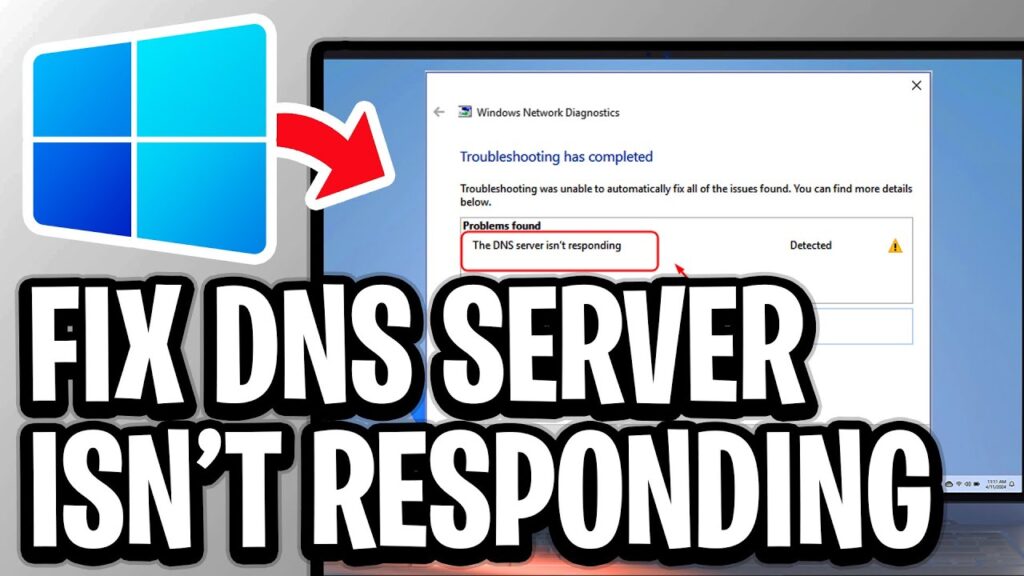
A “DNS server not responding” error means your device cannot translate a website name into an IP address so nothing loads even though your internet connection is technically active. This article is part of the complete Home Networking Guide on Techlym.
What Does “DNS Server Not Responding” Mean?
DNS stands for Domain Name System. Every time you type a web address, your device contacts a DNS server to look up the IP address behind it. When DNS server not responding appears as an error, your device sent that lookup request but never got an answer so it cannot load the page.
The DNS server not responding error does not always mean your internet is completely down. Your connection to the router may be fine. The failure is specifically in the DNS lookup step which is why you can sometimes ping an IP address directly but cannot load websites by name.
8 Fixes for DNS Server Not Responding
1. Restart Your Router and Modem
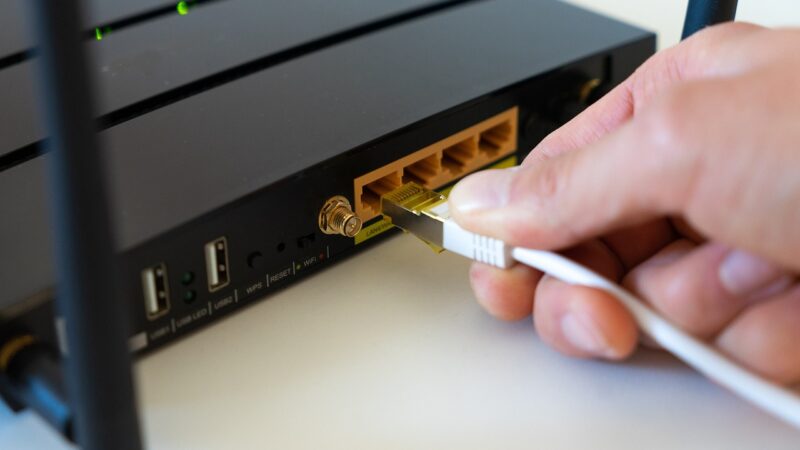
The fastest fix for a DNS server not responding error is a full power cycle. Turn off your modem and router, wait 30 seconds, then turn the modem on first, wait for it to connect, then turn on the router. This clears the DNS cache on the router and re-establishes the connection with your ISP.
2. Flush Your DNS Cache
Open Command Prompt as administrator and run ipconfig /flushdns. This clears the local DNS cache on your Windows device. Stale cache entries can cause this error errors even when the actual DNS server is working fine.
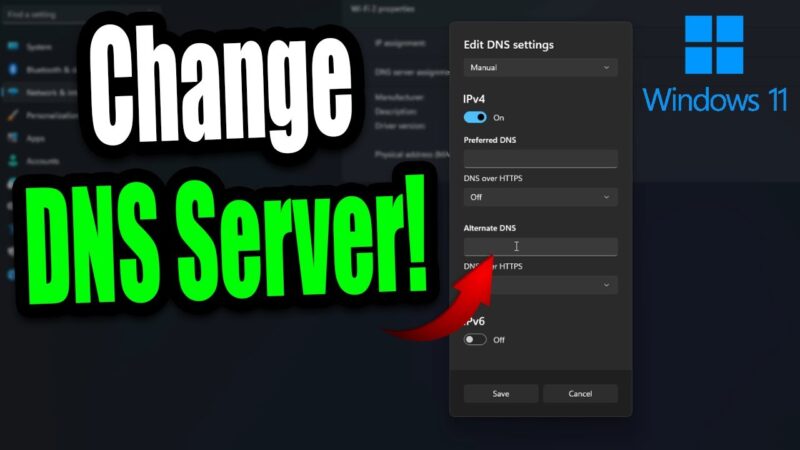
3. Switch to a Public DNS Server
Your ISP assigns a DNS server by default, but it is not always the most reliable. Switching to a public DNS server often resolves persistent this error errors immediately. The two most reliable options are Google DNS (8.8.8.8 and 8.8.4.4) and Cloudflare DNS (1.1.1.1 and 1.0.0.1).
To change your DNS server on Windows 11, see the step-by-step guide to how to change DNS server on Windows 11.
4. Disable Your VPN or Proxy
VPNs route DNS requests through their own servers. If the VPN server is down or overloaded, all DNS lookups fail and you get a this error error. Disconnect from your VPN, test your connection, then reconnect. If it works without the VPN, the problem is on the VPN server side.
5. Disable Antivirus DNS Protection Temporarily
Some antivirus programs intercept DNS requests for filtering purposes. If this feature malfunctions, it causes this error errors on every browser while other applications may still work. Temporarily disable the network protection feature in your antivirus to test whether it is the cause.
6. Update or Reinstall Network Drivers
Outdated network adapter drivers can cause intermittent this error errors. Go to Device Manager, expand Network Adapters, right-click your adapter and select Update Driver. If updating does not help, uninstall the driver and restart Windows will reinstall it automatically.
7. Reset TCP/IP and Winsock
Open Command Prompt as administrator and run these commands in order:
netsh int ip reset
netsh winsock reset
ipconfig /flushdns
Restart your computer after running these commands. This resets the entire network stack and resolves this error errors caused by corrupted TCP/IP settings.
8. Check Your Router DNS Settings
Log in to your router at 192.168.0.1 or 192.168.1.1 and check the DNS server settings in the WAN or Internet section. If the DNS fields are blank or contain incorrect addresses, set them manually to 8.8.8.8 (Google) or 1.1.1.1 (Cloudflare). Save and reboot the router.
For a technical reference on how DNS works, see the Cloudflare DNS explainer. If your wired connection is also affected, check the full guide to ethernet not working for additional diagnostics.
Conclusion
A DNS server not responding error almost always has a fix, and most of them take under five minutes. Start with the simplest steps: flush the DNS cache and switch to a public DNS server before touching any advanced settings. If the error returns repeatedly, switching permanently to Cloudflare (1.1.1.1) or Google (8.8.8.8) typically resolves it for good.