When ethernet is not working, diagnosing the problem is harder than with Wi-Fi. Ethernet is supposed to be the reliable option but when it stops working, diagnosing the problem is harder than with Wi-Fi. This guide covers every cause of a broken or connected-but-no-internet Ethernet connection, with a fix for each.
This article is part of the complete Home Networking Guide — a single reference covering cables, hardware, IP addresses, and troubleshooting for home networks.
Ethernet Not Working: Quick Checks First (60 Seconds)
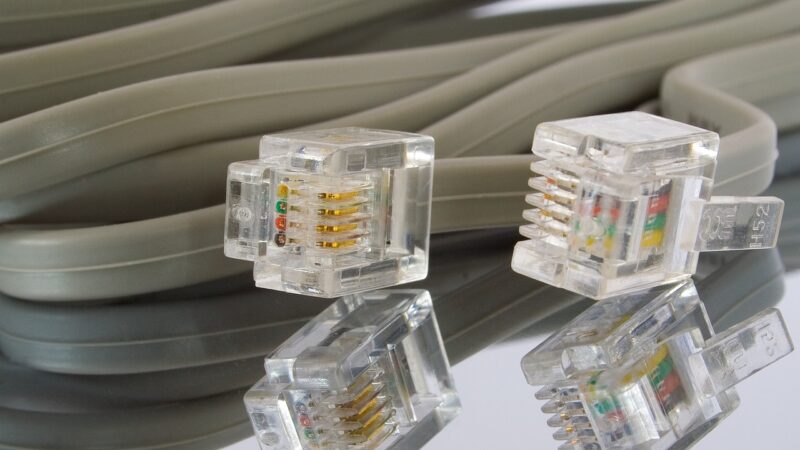
- Check the cable is fully seated. Push both ends firmly until you hear a click. A loose RJ-45 connector is the most common cause.
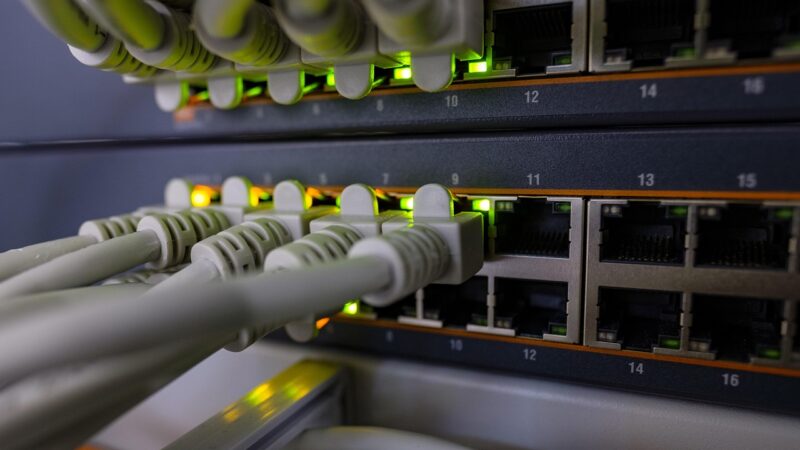
- Look at the port lights. The LED on the Ethernet port should be solid or blinking green. No light = no physical connection.
- Try a different cable. Cables fail especially older Cat5 ones. Swap it before anything else.
- Try a different port on the router/switch. The port itself may be dead.
Ethernet Not Working on Windows: Step-by-Step Fix
1. Run the Network Troubleshooter
- Right-click the network icon in the taskbar → Troubleshoot problems.
- Select Ethernet and follow the prompts.
- Windows will detect and often fix common issues automatically.
2. Release and Renew IP Address
Open Command Prompt as Administrator and run:
ipconfig /release
ipconfig /flushdns
ipconfig /renew
This forces Windows to request a fresh IP from your router. Works for most “connected but no internet” cases.
3. Reset Network Stack
Still not working? Reset TCP/IP entirely:
netsh winsock reset
netsh int ip reset
Restart your computer after running both commands. Microsoft’s network troubleshooting guide covers additional steps if these commands do not resolve the issue.
4. Update or Roll Back the Ethernet Adapter Driver
- Open Device Manager (Win + X → Device Manager).
- Expand Network Adapters.
- Right-click your Ethernet adapter → Update driver.
- If it recently updated and stopped working, choose Roll Back Driver instead.
Ethernet Connected But No Internet
“Connected” means your device sees the network. “No internet” means something between your router and the outside world is broken. Different problem, different fixes.
1. Restart Your Router and Modem
Unplug both devices from power. Wait 30 seconds. Plug the modem in first, wait for it to fully connect, then plug in the router. This resolves the majority of “connected but no internet” cases.
2. Check if the Problem Is Your ISP
Connect another device to the same router via Ethernet or Wi-Fi. If it also has no internet, the problem is with your router or ISP not your computer. Check your ISP’s status page or call their support line.
3. Change Your DNS Server
A broken DNS makes every website appear down even when your connection is fine. Switch to Google or Cloudflare DNS:
- Open Control Panel → Network and Sharing Center → Change adapter settings.
- Right-click your Ethernet connection → Properties.
- Select Internet Protocol Version 4 (TCP/IPv4) → Properties.
- Set DNS to 8.8.8.8 (Google) or 1.1.1.1 (Cloudflare).
4. Disable VPN or Proxy
If you’re running a VPN or proxy, disable it temporarily. These can route traffic incorrectly and cause a “no internet” state even when Ethernet is physically connected.
Ethernet Not Working on Mac: How to Fix It
- Go to System Settings → Network.
- Select your Ethernet connection and click Details.
- Click Renew DHCP Lease.
- If the adapter doesn’t appear at all, try a different USB-C/Thunderbolt Ethernet adapter the adapter itself may be faulty.
When to Suspect the Cable
Cables look fine and still fail. Bent connectors, a broken clip, or internal wire damage (from being stepped on or pinched) will cause intermittent or no connection. The only way to know for sure is a cable tester a basic one costs under $15 and confirms continuity in seconds. See our guide on cable types and how to tell them apart.
Ethernet Not Working After Windows Update
A Windows update that replaces the Ethernet adapter driver is one of the most common causes of sudden connectivity loss. The new driver may be incompatible with your specific hardware revision.
- Open Device Manager → Network Adapters.
- Right-click your Ethernet adapter → Properties → Driver tab.
- If Roll Back Driver is available (not grayed out), click it to restore the previous version.
- If roll back is not available, note the adapter name, go to the manufacturer’s website, and download the driver directly do not rely on Windows Update for network drivers.
Ethernet Not Working on Linux
On Linux, start with the following commands to diagnose:
# Check if the interface is detected
ip link show

# Bring the interface up if it shows as DOWN
sudo ip link set eth0 up

# Request an IP via DHCP
sudo dhclient eth0

# Check if an IP was assigned
ip addr show eth0
If the interface does not appear at all, the driver may not be loaded. Run lspci | grep -i ethernet to confirm the adapter is detected by the system.
Ethernet Not Working Because of a Dead Port
Switch and router ports fail especially on consumer hardware that has been running for years. To test whether the port is the issue:
- Plug the same cable into a different port on the switch or router
- If it works on the new port, the original port is dead
- If the router only has one port (modem/router combo), try connecting directly to the modem to isolate the router
A dead port on a managed switch can often be re-enabled through the admin interface. On unmanaged consumer switches, a dead port typically means it is time to replace the device.
Frequently Asked Questions
- Why is my ethernet not working even though it is plugged in?
- When ethernet is not working despite a connected cable, the most common causes are a bad cable, a dead port, an incorrect IP, or an outdated driver. Swap the cable first.
- Ethernet not working after a Windows update what do I do?
- If ethernet stopped working after a Windows update, the update likely replaced your driver. Open Device Manager and use Roll Back Driver. Ethernet not working after updates is one of the most common driver-related issues.
- Ethernet is not working but Wi-Fi is fine why?
- If ethernet is not working but Wi-Fi connects normally, the problem is isolated to the wired adapter, cable, or switch port. Check the cable first, then try a different port on the router.
- How long does it take to fix ethernet not working?
- Most ethernet not working issues resolve in under 10 minutes once you identify whether the problem is the cable, port, driver, or IP configuration.