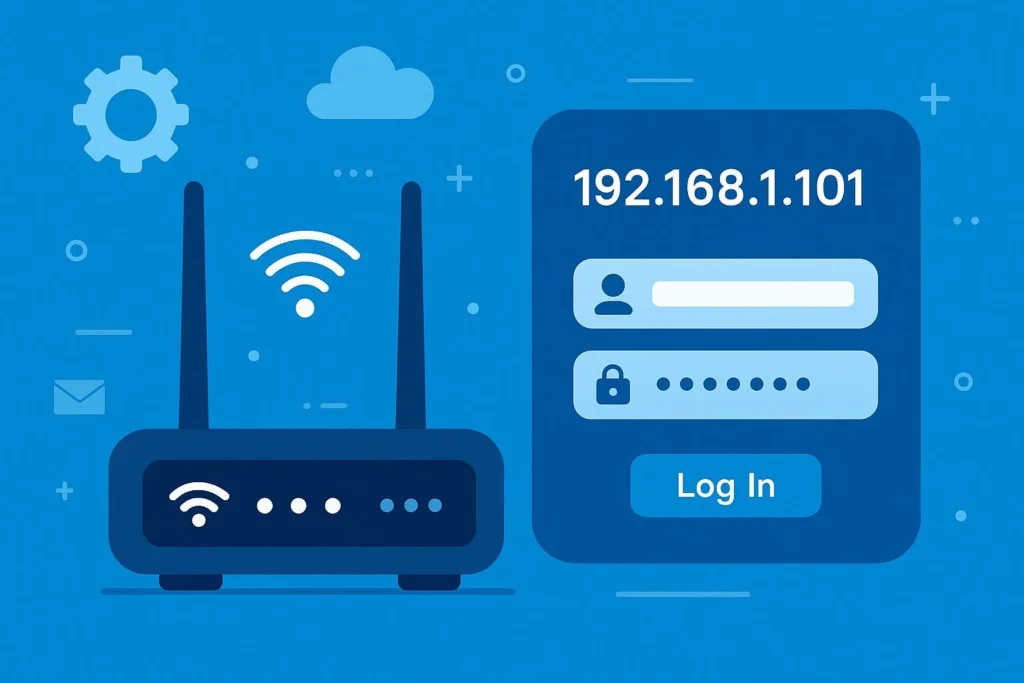
If you’re dealing with 192.168.0.1 not working, you’re basically locked out of your own router. No settings, no password changes, no control. It’s a small problem that blocks everything. This guide shows you exactly how to fix 192.168.0.1 not loading so you can get back into your router in minutes.
What You’ll Need
You’ll need a device connected to your router, either through WiFi or an Ethernet cable. Use a modern browser like Chrome 120 or later. If things go well, you’ll also need your router’s login details, usually printed on a label.
Check the Correct Router IP (Fix 192.168.0.1 Not Working Fast)
Not every router uses 192.168.0.1. That assumption is why a lot of people think something is broken when it isn’t.
On Windows 11:
- Press Windows + R, type
cmd, and press Enter - Type
ipconfigand press Enter - Find Default Gateway — that’s your router’s real address
On macOS, go to System Settings → Network, select your connection, and check the Router field. Same idea, cleaner interface.
If the address is different, that explains why the router admin page not opening keeps happening.
Pro tip: Paste the IP directly into your browser. Typos are more common than people admit.
Make Sure You’re Actually Connected to the Router
If 192.168.0.1 refused to connect, there’s a good chance your device isn’t properly on the network.
Check your WiFi icon. If you’re on mobile data or a different network, nothing will load. Routers only respond to devices inside the same network.
A wired connection helps here. Plugging in an Ethernet cable removes random WiFi issues from the equation. Then restart both the router and your device. It’s basic, but it clears temporary failures that cause 192.168.0.1 not working more often than people expect.
One thing people overlook is guest WiFi. You might be connected, but still blocked from accessing router settings.
Common mistake: Trying to access the router while a VPN is active. That reroutes traffic and can block local addresses completely.
Enter the Address the Right Way
This is where things quietly go wrong.
Type http://192.168.0.1 directly into the browser’s address bar. Not the search bar. If you search it, you’re just asking Google why your setup is broken instead of fixing it.
If 192.168.0.1 not loading persists, try this:
- Open an Incognito window
- Try a different browser (Chrome, Edge, Safari)
- Clear cache by pressing Ctrl + Shift + Delete, then selecting cached files
Browsers sometimes hold onto failed requests and repeat them. That’s why the router admin page not opening can stick around even after fixing the actual issue.
Pro tip: Include http://. Some routers don’t support HTTPS, and your browser may default to it.
Check Firewall or Security Blocks
Sometimes your own system blocks access. Not ideal, but it happens.
On Windows, open Windows Security → Firewall & network protection and temporarily turn it off. On macOS, go to System Settings → Network → Firewall and disable it briefly.
Then test again. If it works, your firewall is blocking local traffic. Turn it back on and configure an exception instead.
Also check for antivirus tools or VPNs. These can easily interfere and cause issues like 192.168.0.1 refused to connect.
This won’t fix everything, but it quickly rules out one of the more annoying causes when you can’t access router settings.
Reset the Router if Nothing Else Works
If you’ve tried everything and 192.168.0.1 not working still isn’t fixed, the router itself is likely the problem.
Find the reset button on the back. It’s usually a small hole. Press and hold it for about 10–15 seconds, then wait for the router to reboot.
After that, reconnect using the default WiFi name and open the admin page again. This clears bad configurations that can break access completely.
When I tested this on an older router, it took almost three minutes before the page loaded again. Resetting it twice just made things worse.
Pro tip: If you still had access before resetting, saving your settings first avoids rebuilding everything later.
Suggested image placement:
- Screenshot showing
ipconfigoutput with Default Gateway highlighted - Screenshot showing browser address bar with
http://192.168.0.1entered correctly
Quick FAQ
Why is 192.168.0.1 not loading on my phone?
Most likely you’re on mobile data instead of WiFi. Switch to your router’s network and try again. VPNs can also block access, so turn them off before testing.
What if I still can’t access router settings after a reset?
At that point, either the IP address is still wrong or the router has a hardware issue. Double-check the Default Gateway. If it still fails, the router may be damaged.
Will resetting the router delete my WiFi name and password?
Yes, everything resets to factory defaults. You’ll need to set up your WiFi name, password, and settings again. It’s annoying, but it fixes deeper problems like 192.168.0.1 refused to connect.
Conclusion
You’ve now fixed the core causes behind 192.168.0.1 not working and regained access to your router. In most cases, it comes down to the wrong IP, connection issues, or browser problems. When those fail, a reset usually clears the mess.
This pairs well with our guide on improving WiFi speed and coverage.
More in This Series
- What Is Ethernet? The Guide That Finally Makes It Click
- 255.255.255.0: What That Number Means in Plain English
- What Is a Loopback Address? Why 127.0.0.1 Always Points Back to You