Knowing how to reduce network latency makes a real difference for gaming, video calls, and remote work. Fixing it eliminates the lag and stuttering that affects real-time connections. Network latency is the delay between sending data and receiving a response. Even with a fast internet connection, high latency makes gaming laggy, video calls choppy, and remote work frustrating. This guide explains exactly which fixes actually work versus which ones are myths.
This article is part of the complete Home Networking Guide — a single reference covering cables, hardware, IP addresses, and troubleshooting for home networks.
What Causes High Latency and Why You Need to Know Before You Reduce Network Latency
To effectively reduce network latency, it helps to know where the delay is coming from:
- Wi-Fi interference: Wireless signals compete with neighboring networks, microwaves, and other 2.4 GHz devices
- Router distance: Signal degrades with distance, increasing processing time per packet
- ISP routing: Your data may travel through unnecessary hops before reaching its destination
- Network congestion: Shared bandwidth during peak hours adds queuing delay
- Outdated hardware: Old routers and network cards add processing overhead — if you’re using a hub instead of a switch, that alone adds latency
- DNS lookup delays: Slow DNS servers add latency to every new connection
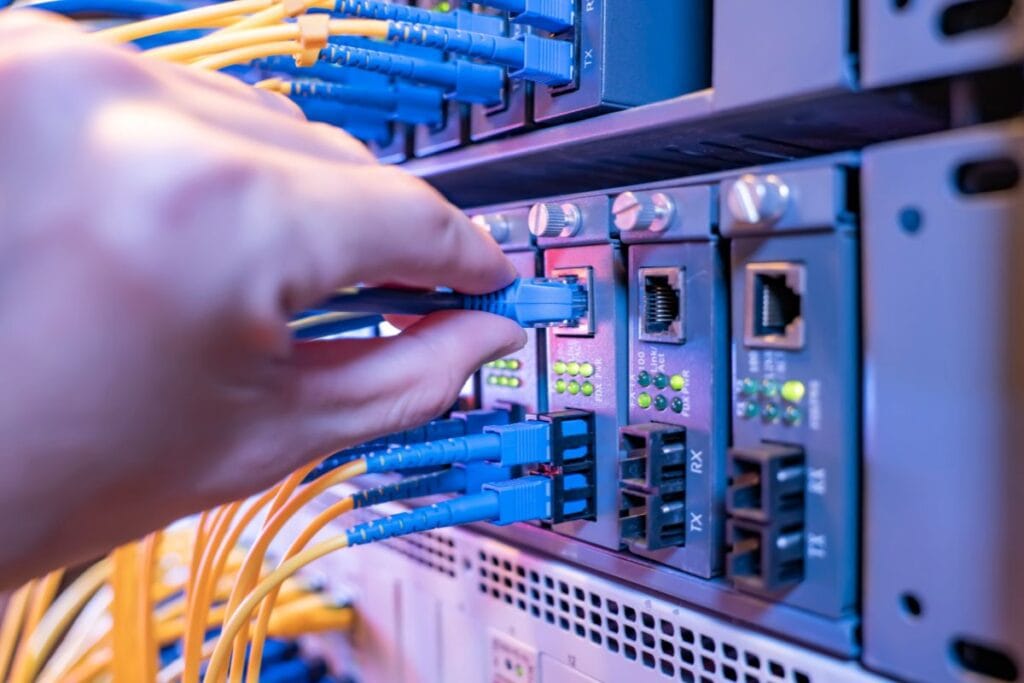
1. How to Reduce Network Latency: Switch from Wi-Fi to Ethernet
This is the single most effective fix for most people. Wi-Fi adds 5–30ms of latency in ideal conditions and can spike much higher with interference. A wired Ethernet connection typically stays below 1–2ms on a local network.
If running a cable is impractical, see our guide: How to Run Ethernet Cable Through Walls. For the right cable to use: Cat5e vs Cat6: Which Should You Use?
2. Reduce Network Latency by Changing Your DNS Server
Every website visit starts with a DNS lookup converting a domain name to an IP address. Your ISP’s default DNS servers are often slow. Switching to a faster public DNS server reduces this initial lookup time on every new connection.
Best options:
- Cloudflare (1.1.1.1): Consistently the fastest globally average response under 15ms
- Google (8.8.8.8): Reliable, widely distributed, average ~20ms
To change DNS on Windows: Control Panel → Network and Sharing Center → Change adapter settings → right-click Ethernet → Properties → IPv4 → Properties. Set preferred DNS to 1.1.1.1 and alternate to 1.0.0.1.
3. How to Reduce Network Latency With Router QoS
Quality of Service (QoS) lets your router prioritize latency-sensitive traffic like gaming or video calls over bulk transfers like downloads. When someone starts a large download while you are gaming, QoS ensures your game traffic gets priority bandwidth.
Find QoS settings in your router’s admin panel (usually at 192.168.0.1 or 192.168.1.1). The exact menu varies by router brand look for “QoS,” “Traffic Priority,” or “Bandwidth Control.”
4. Update Router Firmware
Router manufacturers release firmware updates that include performance improvements and bug fixes some specifically address latency issues. Log into your router admin panel and check for firmware updates under “Administration” or “Advanced” settings. Most modern routers can check for updates automatically.
5. Change Your Wi-Fi Channel (If You Must Use Wi-Fi)
Wi-Fi congestion from neighboring networks on the same channel adds latency. Use a Wi-Fi analyzer app to see which channels your neighbors are using, then switch to a less congested channel in your router settings. On 2.4 GHz, channels 1, 6, and 11 do not overlap use one of those. On 5 GHz, congestion is less common due to more available channels.
6. Flush Your DNS Cache
Stale DNS cache entries can cause unnecessary re-lookups and occasional latency spikes. Flush it periodically:
On Windows (Command Prompt as Administrator):
ipconfig /flushdnsOn Mac (Terminal):
sudo dscacheutil -flushcache; sudo killall -HUP mDNSResponder7. Close Background Applications
Applications that use bandwidth in the background cloud backups, software updaters, streaming services compete for bandwidth and can cause latency spikes even on a fast connection. On Windows, open Task Manager and check the “Network” column to identify which processes are actively using bandwidth.
How to Measure Latency Before and After You Reduce Network Latency
Before and after making changes, measure your latency to verify improvement:
- Ping test: Open Command Prompt (Windows) or Terminal (Mac) and run
ping google.comthe ms values shown are your round-trip latency - Online tools: Speedtest.net shows both download speed and ping in one test
- For gaming specifically: Most games show current ping in an overlay enable it to monitor during play
A baseline below 20ms is excellent for gaming. 20–50ms is acceptable. Above 100ms you will notice lag in fast-paced games and video calls.
What Will Not Help You Reduce Network Latency
- Faster download/upload speed bandwidth and latency are separate measurements. A 1 Gbps connection can still have 80ms ping.
- Most “gaming routers” the latency difference on a local network is negligible unless QoS features are configured
- VPNs these almost always increase latency by adding routing hops
Latency vs Bandwidth: Understanding the Difference
A common misconception is that you can reduce network latency by upgrading your internet plan. People who try this are often disappointed when it makes no difference, because bandwidth and latency are separate measurements that do not directly affect each other:
- Bandwidth is how much data can travel per second like the width of a pipe. Upgrading from 100 Mbps to 1 Gbps increases bandwidth.
- Latency is how long each piece of data takes to travel like the length of the pipe. A faster connection does not shorten the physical distance between you and a server.
A 1 Gbps fiber connection can still have 80ms latency to a server on the other side of the world. The speed of light sets a floor on how low latency can go over long distances — roughly 1ms per 100km through fiber. The practical takeaway is to target the delays you can actually control: local network hardware, Wi-Fi interference, DNS, and routing, not raw bandwidth.
Playing on a PS5 and the controller itself is the problem, not your connection? Here is how to reset a PS5 controller.
Frequently Asked Questions
- What is the fastest way to reduce network latency?
- The fastest way is switching from Wi-Fi to wired Ethernet. This alone can cut latency by 10-30ms on a typical home setup.
- Can a VPN help reduce network latency?
- No. VPNs add routing hops and increase latency. If your goal is to reduce network latency, a VPN works against you unless your ISP is actively throttling specific traffic.
- How do I reduce network latency for gaming?
- For gaming specifically: use Ethernet, enable router QoS for game traffic, switch DNS to 1.1.1.1, and close background bandwidth apps. These steps have a measurable impact in fast-paced titles.
- Does upgrading internet speed reduce network latency?
- Upgrading bandwidth usually does not help. You need to fix routing inefficiencies and local network issues — distance to the server sets the baseline latency regardless of speed.