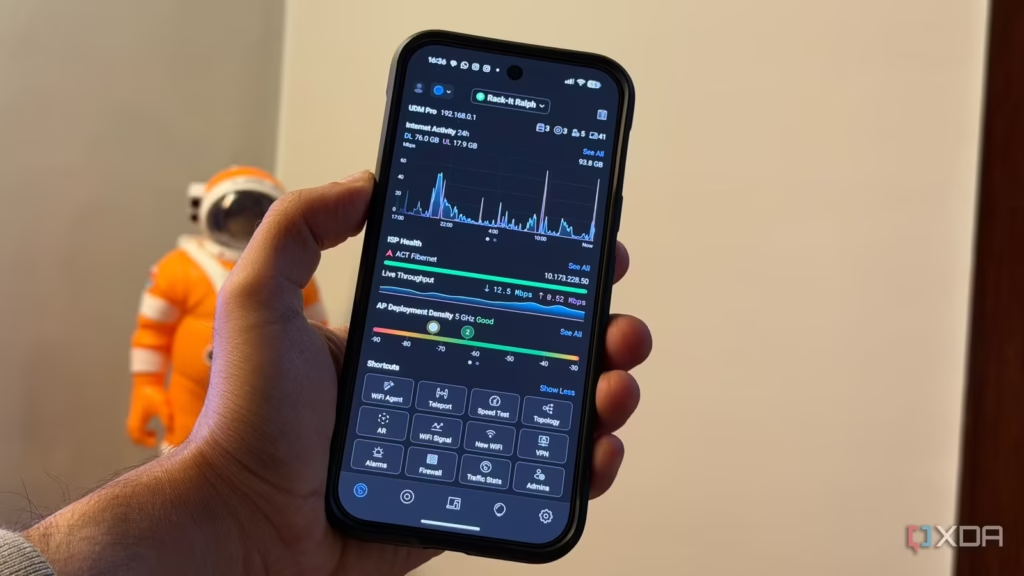
Knowing how to monitor network traffic at home gives you full visibility into what every device on your network is doing and how much bandwidth it is consuming. It lets you identify the device slowing your connection, catch unauthorized users on your Wi-Fi, and spot malware sending data in the background. It also helps you detect unusual activity before it becomes a serious security problem.
How to Monitor Network Traffic at Home? And why?
Home network monitoring is useful in several situations: diagnosing slow internet speeds, identifying bandwidth-heavy devices, detecting unauthorized connections, catching malware that sends data to remote servers, and verifying parental controls. For most users, the easiest starting point is the router they already own.
Method 1: Your Router Admin Panel (No Software Required)
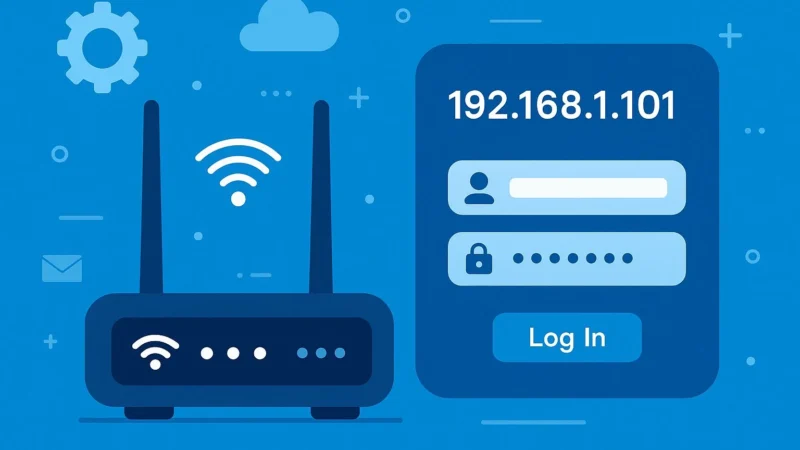
The easiest method is through your router’s built-in administration interface. Log into your router (open a browser and type 192.168.1.1 or 192.168.0.1), then look for a section called Traffic Monitor, Bandwidth Monitor, or Statistics. Most modern routers from TP-Link, ASUS, Netgear, and Linksys include real-time and historical traffic data per device. ASUS routers in particular have a detailed Traffic Analyzer that logs per-device usage over time.
Method 2: Windows Resource Monitor
Windows Resource Monitor is one of the simplest tools for a single PC. Press Win + R, type resmon, and press Enter. Click the Network tab to see every active network connection, which process is generating it, the destination address, and the current bytes sent and received. This is excellent for identifying which application is consuming bandwidth on a specific computer.
Method 3: GlassWire (Free)
Many beginners prefer GlassWire because it makes traffic visible at a glance. It shows a historical graph of bandwidth usage, breaks it down by application and destination, and alerts you when a new app connects to the internet for the first time. The free version covers one computer and provides 7 days of history, more than enough for diagnosing home network problems. Install it from the GlassWire website and it starts logging immediately with no configuration required.
Method 4: Wireshark (Deep Packet Inspection)
Wireshark is the industry-standard tool for capturing and analyzing network packets. It is free, open source, and available for Windows, Mac, and Linux. Wireshark lets you see every packet crossing your network adapter in real time, including source and destination IPs, protocols, and payload data. It is more complex than other tools but invaluable when you need to see exactly what a specific device is sending.
Method 5: NetFlow or SNMP Monitoring via Your Router
If your router supports NetFlow or SNMP (many ASUS, MikroTik, and pfSense routers do), you can use free tools like ntopng or Nagios to collect detailed traffic statistics from the router itself. Once you know how to monitor network traffic at home, suspicious devices and unusual bandwidth spikes become much easier to identify.
What to Do If You Find Suspicious Traffic
If you spot a device sending large amounts of data to an unknown IP address, or an unfamiliar device on your network, take these steps: change your Wi-Fi password immediately, check the connected devices list in your router admin panel, run a malware scan on any computers showing suspicious traffic, and check whether any smart home devices have been compromised. Many home network intrusions start with a weak or default Wi-Fi password.
Network Monitoring Tools Comparison
| Tool | Cost | Scope | Skill Level | Best For |
|---|---|---|---|---|
| Router Admin Panel | Free (built-in) | Whole network | Beginner | Per-device bandwidth usage |
| Windows Resource Monitor | Free (built-in) | One PC | Beginner | Per-process traffic on Windows |
| GlassWire | Free tier | One PC | Beginner | Visual traffic history + alerts |
| Wireshark | Free | One adapter | Advanced | Deep packet inspection |
| ntopng | Free (community) | Whole network | Advanced | Network-wide flow analysis |
| PRTG (free tier) | Free up to 100 sensors | Whole network | Intermediate | Ongoing network monitoring |
Conclusion
Doing this does not require expensive software or advanced networking knowledge. Your router admin panel gives you everything you need to identify bandwidth hogs and unauthorized devices. Add GlassWire for per-application visibility on your Windows computers, and use Wireshark when you need to investigate specific packet-level behavior. The most important habit is to check your router’s connected device list and traffic logs at least monthly. The more consistently you do this, the easier it becomes to spot security issues and bandwidth problems early.