WiFi works but Ethernet doesn’t this is one of the most common networking complaints on Windows, and the good news is it is almost always fixable without buying new hardware. When WiFi works but Ethernet doesn’t, the problem is always specific to the wired connection: the cable, the driver, an IP configuration failure, or a port issue. WiFi works but Ethernet doesn’t because the two paths to the internet are completely independent your wireless adapter and your wired adapter operate separately, so one can fail while the other keeps working. This guide walks through every fix for when WiFi works but Ethernet doesn’t, ranked by how often each solution succeeds.
If WiFi works but Ethernet does not on the same computer, the problem is almost never your internet connection. When WiFi works but Ethernet does not, the issue is isolated to the wired connection itself usually the cable, the network adapter driver, a misconfigured IP setting, or a faulty port. The good news is that this is one of the most reliably fixable networking problems on Windows.
Step 1: Check the Ethernet Cable
The most common reason WiFi works but Ethernet does not is a bad cable. Ethernet cables can fail internally without any visible damage a bend, a crimp, or a damaged connector can break connectivity entirely while the cable looks fine from the outside. Test with a different Ethernet cable first. If the new cable works, the original cable was the problem.
Step 2: Try a Different Port on the Router
Router ports can fail individually. Plug your Ethernet cable into a different LAN port on your router. If the other port works, the original port has failed and you can simply use a different one. If your router only has one LAN port and you suspect it is faulty, try connecting through a network switch.
Step 3: Check the Link Light
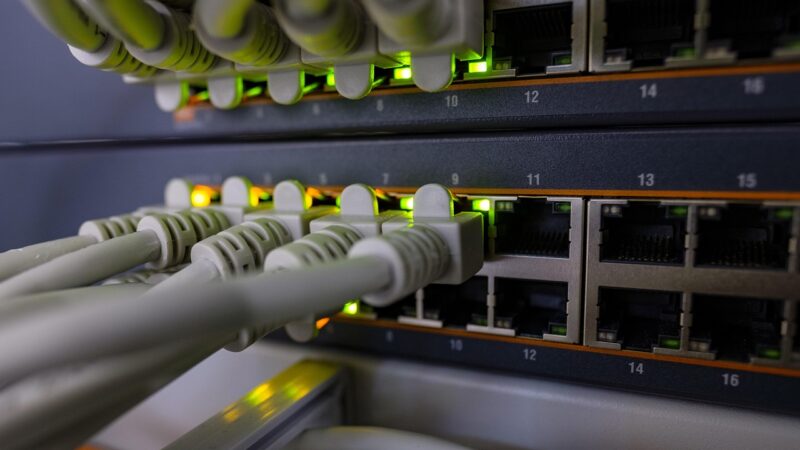
When Ethernet is physically connected, the port on your router and the port on your computer should show a solid or blinking LED (usually green or amber). If the link light is off on either end, the physical connection is not being detected which points to a dead cable, a dead port, or a disabled network adapter.
Step 4: Update or Reinstall the Network Adapter Driver
A corrupt or outdated Ethernet driver is a frequent cause. To update it on Windows 11: right-click the Start button, select Device Manager, expand Network Adapters, right-click your Ethernet adapter, and choose Update Driver. If updating does not help, choose Uninstall Device, restart your computer, and let Windows reinstall the driver automatically.
Step 5: Release and Renew Your IP Address
If the Ethernet adapter shows as connected but you cannot access the internet, your device might not have received a valid IP address from the router. Open Command Prompt as administrator and run:
ipconfig /releaseipconfig /flushdnsipconfig /renew
If the renew command hangs or fails, your DHCP request is not reaching the router this points to a driver issue or a physical connection problem.
Step 6: Disable and Re-enable the Ethernet Adapter
Open Device Manager, right-click your Ethernet adapter, choose Disable Device, wait 10 seconds, then right-click again and choose Enable Device. This forces the adapter to reinitialize and request a new IP address from the router.
Step 7: Reset TCP/IP and Winsock
Corrupted TCP/IP settings can cause Ethernet to fail even when WiFi works fine. Open Command Prompt as administrator and run these commands one at a time:
netsh int ip resetnetsh winsock resetipconfig /flushdns
Restart your computer after running all three. This resets your network stack to defaults and resolves most software-level causes.
Step 8: Check Your Router DHCP Settings
If multiple Ethernet-connected devices have the same problem, your router DHCP server may be full or disabled. Log into your router admin panel (usually 192.168.1.1) and check the DHCP settings. Make sure DHCP is enabled and the address pool has available addresses.
Step 9: Test with a Different Computer
Plug the Ethernet cable into a different computer. If that computer connects successfully, the problem is with your original computer adapter or settings. If the second computer also fails, the problem is with the cable, router port, or router configuration.
Symptom-to-Cause Quick Reference
| What You See | Most Likely Cause | Fix |
|---|---|---|
| No link light on either end | Dead cable or disabled adapter | Replace cable or enable adapter |
| Link light on, no IP address | DHCP failure or driver issue | ipconfig /renew or driver reinstall |
| IP address shown but no internet | Wrong DNS or gateway issue | Change DNS to 1.1.1.1 or netsh reset |
| Intermittent drops on Ethernet only | Failing cable or loose connector | Replace cable and check RJ45 crimp |
| Ethernet works on another PC | Driver or OS configuration issue | Reinstall adapter driver |
| Ethernet fails on all devices | Router port or DHCP pool exhausted | Try different router port, check DHCP |
Conclusion
When WiFi works but Ethernet does not, the root cause is almost always one of four things: a bad cable, a driver problem, an IP configuration failure, or a faulty router port. Work through the fixes in the order presented physical first, then software and you will resolve the issue in most cases without spending a penny. If all nine steps fail and you have confirmed the problem is isolated to one specific computer, a USB-to-Ethernet adapter (available for under $15) is a reliable workaround while you wait for a hardware replacement.
Related Articles
- What Is a Subnet Mask? The One Setting That Breaks Your Network If Wrong
- Default Gateway Not Available? What It Means and How to Fix It Fast
- How to Change DNS on Windows 11 in 2 Minutes (3 Methods, Faster Internet)
- DHCP Not Working? How to Enable It on Any Router in 3 Steps
- 5 Free Ways to Monitor Network Traffic at Home (No Experience Needed)