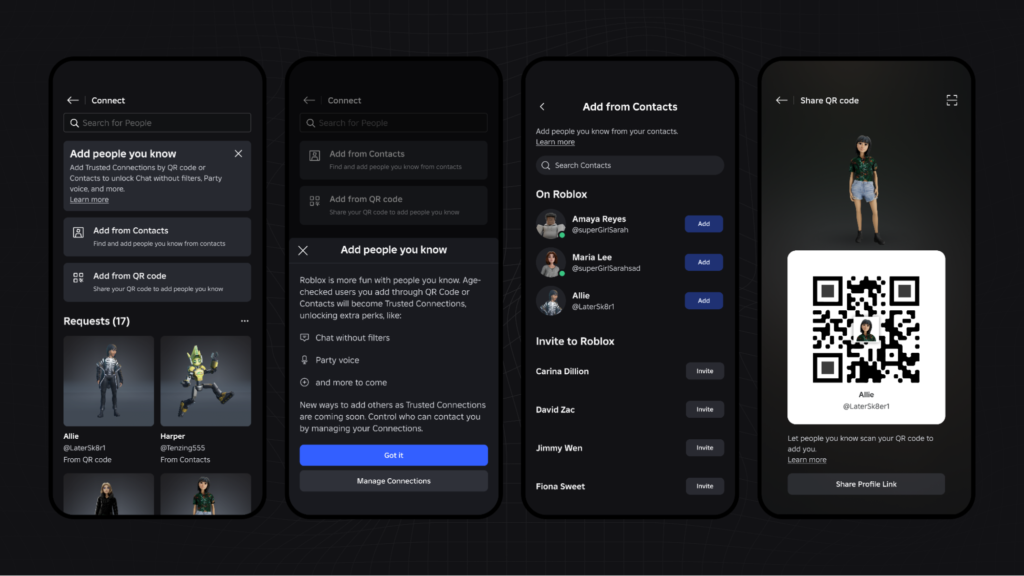
Both accounts complete Roblox’s age check first. Then open Home and tap the “+” next to Connections, choose “Add from QR code” or “Add from Contacts,” and complete the request on both sides. If either person skips the age check, or the pairing doesn’t qualify for that age combination, Roblox keeps it as a regular Connection instead of a Trusted one.
If you’ve been trying to figure out how to make someone a trusted connection on Roblox and the option won’t show up, you’re not imagining it. Roblox renamed this feature in the middle of 2026, some support pages still use the old wording, and the rules are genuinely different depending on whether you’re 12, 15, or 30. A lot of the guides floating around right now were written before the terminology changed and before Roblox clarified how the under-13 process actually works, which is exactly where most of the confusion is coming from.
Our team mostly writes about why connections fail — routers, DNS, dropped Bluetooth pairings — and the same pattern shows up here: people assume a feature is broken when it’s actually gated behind a requirement they haven’t met yet (an incomplete age check, a one-sided request, a region without the feature). Below is what Roblox’s own support pages and its April 2026 newsroom post currently say, verified directly rather than copied from an older guide.
Trusted Connections or Trusted Friends? What Roblox Actually Renamed in 2026
Roblox rolled out “Connections” and “Trusted Connections” as the replacement for “Friends” earlier in 2026, then reversed course. On April 2, 2026, Roblox published “Friends Are Back: Expanding Trusted Friends for a New Way to Chat and Play,” which renamed Connections back to Friends and Trusted Connections to Trusted Friends. Roblox’s current support article on the feature is titled “Unlocking trusted friends” — the same article ID that used to be titled “Unlocking Trusted Connections.”
In practice, both terms still work: the app’s Connect screen, older screenshots, and most people’s search habits still say “Trusted Connection,” while Roblox’s own current documentation says “Trusted Friend.” They describe the same mechanism. This guide uses both interchangeably and flags it here because it’s the single biggest reason people can’t match what they’re reading to what’s on their screen.
What a Trusted Connection Actually Is
A Trusted Connection (or Trusted Friend) is not a special tier of “friend” you unlock by playing more. It’s a regular Connection that both people agree to upgrade after Roblox has age-checked them. It is:
- A two-way status — both accounts have to accept it, not just one.
- Meant for people you actually know outside Roblox: family, classmates, real-life friends.
- Gated by Roblox’s age-check system and age-group rules.
- Still covered by Roblox’s Community Standards, moderation, and reporting tools.
- Reversible — removing the trusted status downgrades someone to a regular Connection rather than deleting the relationship.
It does not mean Roblox has verified the person’s real identity, and it doesn’t replace supervision for younger accounts.
Eligibility by Age (Verified Against Roblox’s Current Rules)
This table reflects Roblox’s current support documentation, not the earlier “under 13 can’t do this at all” assumption that circulates in older guides. The under-13 process is real, it’s just parent-gated rather than blocked.
| User | Can create a Trusted Connection? | Key rule |
|---|---|---|
| Under 13 | Yes, with parent approval | A linked parent must approve the request in Parental Controls (or by email) within 24 hours; if the other account is also under 13, that account’s parent has to approve it too. |
| 13–17 | Yes, after age check | Connecting with an adult requires a real-life method — live QR scan or Contact Importer. |
| 18+ | Yes, after age check | Same real-life-method requirement applies when the other account is 13–17. |
| Any age, no completed age check | No | The account stays a regular Connection until the age check is finished. |
Roblox has also been rolling out a related change: a linked parent account automatically becomes a Trusted Friend of their child’s account, and Roblox says parental consent will extend Trusted Friend status to siblings and cousins across age groups. Availability still varies by account, region, and app version, so check the Connect screen on the actual device rather than assuming every account sees the same options.
Before You Start
- Both accounts need an accurate birth date on file.
- Both accounts should already be regular Connections if the app prompts for that first.
- Both accounts need to complete Roblox’s age check (facial age estimation or ID verification).
- For the QR method, both people need to be physically together. For Contact Importer, each person needs the other saved in their phone contacts.
- Roblox may display the other account’s username, connection length, age group, and inferred country during the process — know that this information is shown before you confirm.
Method 1: QR Code
This is the more reliable option when both people are in the same room, because there’s no permission prompt to argue with.
On the first account: open Roblox, go to Home, tap the “+” near Connections, and choose the QR option (“My QR” or “Share QR code”) to display your code.
On the second account: open the same “+” menu, choose the QR scanner, and scan the first account’s code. Some pairings need both people to scan each other’s codes or confirm on-screen — follow whatever prompt Roblox shows, since it varies by the exact age combination.
Because this is a two-way status, if only one person accepts, the pairing usually stays a regular Connection instead of becoming trusted.
QR safety rules: only scan a code while you’re actually with that person; never post your own QR code publicly on YouTube, Discord, or a group chat; never scan a code from someone claiming to be a moderator, developer, or “free Robux” contact; and stop if the account, age group, or country shown doesn’t match who you expected.
Method 2: Contact Importer
Contact Importer checks your phone’s contact list against Roblox accounts.
- Save the person’s phone number in your contacts.
- Open Roblox, go to Home, tap “+,” and choose Contact Importer.
- Grant the contact-access permission if you’re comfortable doing so.
- Review the matches Roblox surfaces and send or accept the request.
- Both accounts complete any required approval before the status becomes trusted.
Importing your contacts doesn’t make every match a Trusted Connection automatically — anyone who hasn’t finished their own age check is added as a regular Connection instead. If you’d rather not hand a phone’s full contact list to any app, use the QR method for a single known person instead. Standard account-security habits still apply here: the same caution about oversharing device permissions is worth applying the way we cover it in our guide on spotting a compromised phone.
Under 13? Here’s How the Parental Approval Actually Works
This is the part most guides get wrong, because it changed after they were written. An under-13 account is not simply locked out of Trusted Connections — the request routes through the parent instead of being blocked outright.
- The child sends a Trusted Connection/Trusted Friend request as usual.
- The linked parent gets a notification by email and as a pending item inside Parental Controls, with roughly 24 hours to approve or deny it.
- If the request is to another under-13 account, that child’s parent has to approve it as well before it goes through.
- Once approved, Roblox’s standard safety monitoring still applies to all chat between Trusted Friends — the trusted label doesn’t turn off moderation.
If your child’s account isn’t linked to a Parental Controls profile yet, the request will stall with no clear explanation on the child’s screen — that’s usually the actual cause, not a bug.
If It Isn’t Working
The Trusted Connection option is missing
Check that the age check has actually completed (not just started), that the account isn’t stuck under 13 without a linked parent, that both people are on an up-to-date app version, that the two accounts are already regular Connections if the app requires that step first, and that Parental Controls hasn’t restricted chat features on that account.
It became a regular Connection instead of a trusted one
This usually means one side hasn’t finished the age check, the age combination doesn’t qualify for that connection method, one person didn’t confirm the request, or the feature hasn’t fully rolled out to that account’s region yet. Redo the age check, then repeat the QR scan or Contact Importer step.
The request is stuck pending
Check the pending-requests area on the Connect screen (or the parent’s Parental Controls dashboard for an under-13 account). Roblox’s own support material notes the exact menu wording can differ slightly by platform and app version.
The age estimate looks wrong
If Roblox’s self-reported age says 13+ but the estimate comes back under 13, a roughly 48-hour grace period applies before the account’s age group updates — or you can accept the outcome immediately to skip the wait. To correct it faster, go to Settings, then Account Info, and verify with ID, or have a linked parent update the birth date from Parental Controls.
What Trusted Connections Actually Unlock
For eligible, age-checked pairs, Trusted Connection status can unlock Party Voice, less-filtered chat inside Friends Chat, and group/text chat across age groups that would otherwise be blocked. Two age-checked adults chatting one-to-one may get some of this automatically without needing the trusted label at all. None of it turns off Roblox’s Community Standards — “less-filtered” chat is still moderated, and violations still lead to warnings, suspensions, or bans.
Parent Guide
If you’re managing a child’s account: link a parent account through Parental Controls, review who’s already a Connection and Trusted Connection, restrict chat or voice features if the account is too young for them, and don’t approve a request based only on a profile picture or username — check who the child actually knows offline. Roblox’s parental dashboard lets you review, block, and report from the same place.
Regardless of age, never share full name, address, school, phone number, passwords or login codes, ID photos, payment details, exact location, or private photos inside Roblox chat — trusted status changes the chat filter, not the site’s underlying rules about what’s safe to share. Given how often scam links piggyback on legitimate-looking chat requests, it’s worth applying the same instincts we cover in our phishing-response guide and our notes on protecting social accounts — unexpected links, urgency, and “free Robux” offers are the same playbook attackers use everywhere else online.
How to Remove a Trusted Connection
- Open the person’s profile.
- Tap the three-dot menu.
- Select “Remove Trusted Connection” (or “Remove trusted friend”).
- Confirm.
This downgrades them to a regular Connection rather than deleting the relationship. To remove them entirely, use “Remove Connection” / “Remove friend” instead, and use Block or Report if the issue is a safety concern rather than a preference.
Techlym’s Trusted Connection Checklist
Before approving anyone, run through this before tapping accept:
- Do you actually know this person outside Roblox?
- Did you use Roblox’s official QR scan or Contact Importer — not a link sent through chat?
- Have both accounts completed the age check?
- Does the account information shown during the request match who you expected?
- Would you be fine with a parent seeing this connection?
- Do you know how to block and report this person if something changes?
Any “no” is a reason to leave the person as a regular Connection, or to remove and report them if something already feels wrong.
Where This Leaves You Right Now
Roblox has changed this feature’s name once already in 2026 and is still actively rolling out pieces of it — automatic parent-child trusted status, sibling/cousin trusted status by consent — region by region. The reliable approach isn’t memorizing one fixed set of menu labels; it’s checking the age-check status first, matching the method (QR or Contact Importer) to who you’re actually connecting with, and treating “it’s not showing up” as a permissions problem before assuming it’s broken. Our PS5 controller reset guide covers a similar “it looks broken but it’s actually a pairing state” problem on the console side.
FAQ
What’s the difference between a Trusted Connection and a Trusted Friend on Roblox?
Nothing functional — Roblox renamed Trusted Connections to Trusted Friends (and Connections to Friends) on April 2, 2026. Both terms describe the same two-way, age-checked relationship; you’ll see either depending on which support page or app version you’re looking at.
Can a child under 13 have a Trusted Connection on Roblox?
Yes, but only with a linked parent’s approval through Parental Controls (or by email), typically within a 24-hour window. If the request is to another under-13 account, that child’s parent has to approve it too before the status becomes trusted.
Why does my Roblox Trusted Connection request stay pending?
Check the pending-requests area on the Connect screen — the other person likely hasn’t accepted yet. For an under-13 account, check Parental Controls instead, since the request may be waiting on parent approval rather than the other user.
Why did my connection only become a regular Connection instead of trusted?
Usually one side hasn’t finished the age check, the age combination doesn’t qualify for that specific connection method, or the request wasn’t confirmed on both accounts. Redo the age check and repeat the QR scan or Contact Importer step.
Can I remove someone’s Trusted Connection status without unfriending them?
Yes. Open their profile, tap the three-dot menu, and choose “Remove Trusted Connection” (or “Remove trusted friend”). This downgrades them to a regular Connection instead of deleting the relationship — use “Remove Connection” separately if you want to end it entirely.
Does Roblox store my face or contacts when I use age estimation or Contact Importer?
Roblox states the facial age-estimation video isn’t stored after your age is processed, and Contact Importer only uses your device contacts to find matching accounts, not to build a public list. Review Roblox’s current privacy documentation before granting either permission if you want the exact retention details.