If you are wondering why is Chrome so slow, you are not alone. Chrome is slow for most users because of one or more of these reasons: too many open tabs, memory-heavy extensions, a bloated cache, or hardware acceleration issues. The good news is that each cause has a specific fix. This guide covers the 8 most common reasons Chrome runs slowly and exactly what to do about each.
1. Too Many Open Tabs
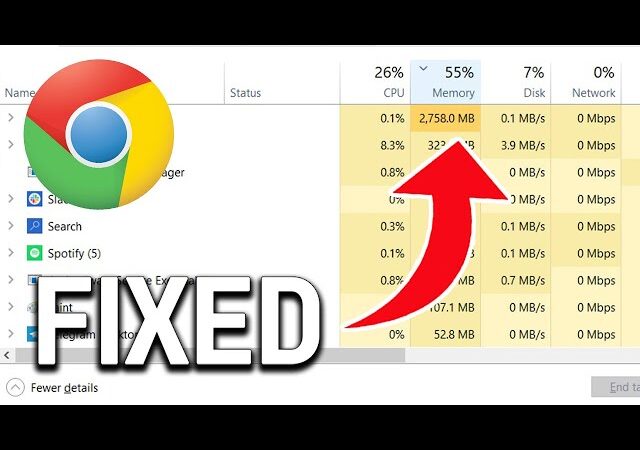
Chrome loads each tab as a separate process and keeps them in RAM. With 20+ tabs open, Chrome can easily consume 4–8 GB of memory slowing down not just the browser but your entire system.
Fix: Use Chrome’s built-in Memory Saver (introduced in Chrome 108). Go to Settings → Performance → Memory Saver and enable it. Chrome will automatically put inactive tabs to sleep, freeing up RAM until you click on them again.
2. Too Many Extensions
Every Chrome extension runs code on every page you visit. A combination of ad blockers, password managers, grammar checkers, and other tools can add significant overhead to each page load.
Fix: Go to chrome://extensions and disable or remove extensions you don’t regularly use. Test Chrome in Incognito mode (where extensions are disabled by default) if Chrome is noticeably faster there, an extension is the culprit.
3. Full or Corrupted Cache
Chrome’s cache stores website files to speed up loading on repeat visits. Over time, the cache can grow to several gigabytes and become corrupted, actually slowing page loads instead of speeding them up.
Fix: Clear your cache. The fastest way is to press Ctrl+Shift+Delete in Chrome, select “Cached images and files,” and click “Clear data.” For a more detailed guide, see how to clear cache in Chrome.
4. Hardware Acceleration Issues
Hardware acceleration offloads rendering tasks to your GPU. On most systems this speeds things up, but on some older GPUs or with certain drivers, it causes lag, flickering, or crashes.
Fix: Go to Settings → System and toggle Use hardware acceleration when available. Restart Chrome. If performance improves, your GPU drivers may need updating. For a full walkthrough, see how to disable hardware acceleration in Chrome.
5. Outdated Chrome Version
Google regularly releases performance improvements in Chrome updates. Running an outdated version means missing speed optimizations and security fixes.
Fix: Go to Settings → Help → About Google Chrome. Chrome will check for updates automatically and install them. A restart may be required.
6. Malware or Unwanted Software
Browser hijackers and adware inject code into pages, redirect searches, and consume CPU cycles in the background all of which slow Chrome significantly.
Fix: Run Chrome’s built-in cleanup tool at chrome://settings/cleanup (Windows only). Also run a full system scan with Malwarebytes (free version available).
7. Too Many Startup Processes
Chrome can run background processes even when no browser window is open. These consume CPU and RAM and slow down the initial launch.
Fix: Go to Settings → System and disable Continue running background apps when Google Chrome is closed.
8. Slow Internet Connection, Not Chrome
Sometimes what looks like a slow browser is actually a slow internet connection. Chrome is not responsible for network latency or bandwidth issues.
Fix: Test your connection speed at fast.com. If your speeds are well below what you’re paying for, the issue is your ISP or router, not Chrome. See how to reduce network latency for fixes specific to connection delays. Try restarting your router and checking if other devices are also slow.
Quick Checklist
- ✅ Enable Memory Saver (Settings → Performance)
- ✅ Disable unused extensions (chrome://extensions)
- ✅ Clear cache (Ctrl+Shift+Delete)
- ✅ Update Chrome (Settings → About)
- ✅ Disable hardware acceleration if GPU is old
- ✅ Turn off background running
- ✅ Scan for malware
Understanding why is Chrome so slow is the first step. In most cases, disabling unused extensions and enabling Memory Saver will solve the problem immediately. If Chrome is so slow that basic pages struggle to load, a malware scan should be your next step. If pages are slow even after fixing Chrome, the problem may be your network — see how to reduce network latency.
If Chrome is also eating your RAM, see Chrome using too much memory.
Frequently Asked Questions
Why does Chrome use so much RAM?
Chrome runs each tab and extension as a separate process for stability and security if one tab crashes, others are unaffected. This design uses more RAM than single-process browsers but prevents one bad page from crashing everything. Memory Saver reduces this by suspending inactive tabs.
Is Chrome slower than other browsers?
Chrome and Edge (which is based on Chromium) have similar performance profiles. Firefox uses less RAM by default. Safari is generally the fastest browser on Apple hardware due to deep OS integration. For Windows users, Chrome and Edge are comparable.
Does clearing history speed up Chrome?
Clearing browsing history has minimal effect on speed. Clearing the cache and cookies has a more noticeable impact. See our full guide on clearing Chrome cache for the fastest method.
Why is Chrome so slow after an update?
A Chrome update can reset settings or enable new features that conflict with your hardware. Why is Chrome so slow after an update? Usually hardware acceleration. Go to Settings → System and toggle off Use hardware acceleration when available, then restart. Clearing the cache after a major update also helps.
Why is Chrome so slow even on a fast connection?
A fast connection does not guarantee a fast browser. If Chrome is so slow on a fast network, the cause is almost always extensions, cache, or background processes not bandwidth. Work through the checklist above before blaming your ISP.