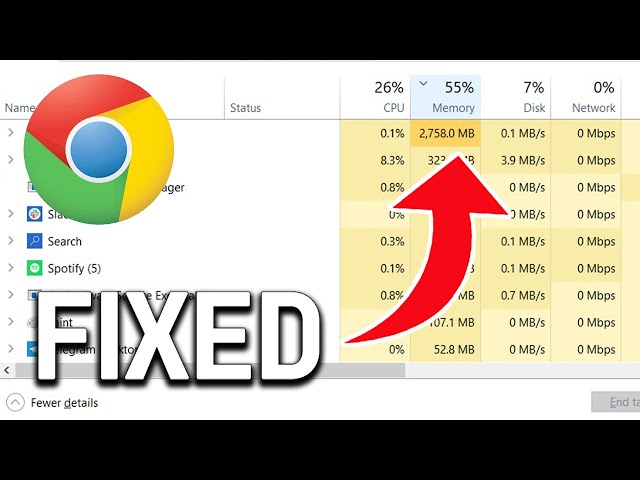
If Chrome using too much memory and slowing down your computer, you are dealing with a known trade-off. Chrome uses more RAM than any other browser by design. Each tab, extension, and background process runs in its own isolated process. That’s why it’s stable (one crashed tab doesn’t take down the rest), but it’s also why Chrome can consume several gigabytes on a system with many tabs open. Here’s how to bring it under control.
Why Chrome Uses So Much Memory
Understanding why chrome using too much memory starts with its architecture. Chrome’s multi-process architecture means every tab is a separate process in memory. Add extensions (each one is also a process), pre-rendering for faster page loads, and V8’s JavaScript engine caching, and RAM usage adds up fast.
On a system with 8GB of RAM, 15 open tabs plus 5 extensions can easily consume 3–4GB leaving less for everything else.
Check What Is Causing Chrome Using Too Much Memory
Before fixing anything, see exactly which tabs and extensions are the culprits:
- Press Shift + Esc inside Chrome to open the Chrome Task Manager. Google’s official Chrome Help page on memory also covers the Memory Saver feature in detail.
- Click Memory footprint to sort by RAM usage.
- Identify tabs or extensions consuming the most you can end individual processes from here.
How to Fix Chrome Using Too Much Memory
1. Enable Memory Saver
Chrome’s built-in Memory Saver automatically puts inactive tabs to sleep, freeing their RAM until you click on them again.
- Open Chrome Settings → click Performance in the left sidebar.
- Toggle on Memory Saver.
This alone can cut Chrome’s RAM usage by 30–50% if you regularly have many tabs open.
2. Remove Unused Extensions
Extensions run constantly in the background. Go to chrome://extensions and remove anything you don’t actively use. Even disabled extensions take up some memory uninstall them fully.
3. Limit Open Tabs
Each tab consumes at minimum 50–100MB. With Memory Saver on, inactive tabs are suspended but the most effective fix is simply closing tabs you’re not using. Use bookmarks or a read-later app instead.
4. Disable Hardware Acceleration (If GPU Memory Is Spiking)
If Chrome is consuming GPU memory specifically, disabling hardware acceleration can help. Go to Settings → System and toggle off “Use hardware acceleration when available”. See our detailed guide: How to Disable Hardware Acceleration in Chrome.
5. Clear Cache and Browsing Data
A bloated cache doesn’t directly cause high RAM usage, but it slows Chrome down in ways that feel like a memory problem. Clear it regularly: How to Clear Cache in Chrome in 30 Seconds.
6. Reset Chrome Flags
Experimental flags (chrome://flags) can increase memory consumption if misconfigured. Reset all flags to default:
- Go to
chrome://flags. - Click Reset all at the top.
- Relaunch Chrome.
7. Update Chrome
Memory leaks in older versions are fixed in updates. Go to Settings → Help → About Google Chrome Chrome will check for and install updates automatically.
How Much RAM Should Chrome Use?
A rough baseline: expect 100–200MB per active tab and 50–100MB per extension. With Memory Saver enabled, inactive tabs drop to near zero. If a single tab is consistently using 500MB+, the site itself has a memory leak not Chrome.
Chrome Still Using Too Much Memory? Last Resort Fixes
If chrome is still using too much memory after all the above steps, try creating a new Chrome profile (Settings → You and Google → Add) with no extensions and test again. If memory usage normalizes, the problem is in your existing profile’s extensions or settings, not Chrome itself. Also see: Why Is Chrome So Slow?
Understanding Chrome’s Process Model
Chrome’s memory usage makes more sense once you understand how it manages processes. Open chrome://process-internals to see every active process and what it is doing. The main categories are:
- Browser process: The main Chrome window handles the UI, address bar, and coordinates other processes. Usually 100–200MB.
- Renderer processes: One per tab (or shared between similar-origin tabs). Each renderer runs JavaScript, parses HTML, and handles the page layout.
- GPU process: Handles all hardware-accelerated rendering. One per Chrome instance regardless of tab count.
- Extension processes: One per installed extension. Run continuously in the background even when you are not actively using the extension.
- Utility processes: Audio, network, storage supporting infrastructure for the browser.
This architecture is why Chrome uses more memory than single-process browsers but it is also why one crashed tab does not take down everything else.
Chrome Memory Usage by Operating System
Chrome behaves differently depending on available RAM:
- On Windows: Chrome uses a memory pressure signal from the OS. When Windows reports low memory, Chrome starts suspending background tabs more aggressively even without Memory Saver enabled.
- On Mac: macOS uses compressed memory, so Chrome’s reported usage in Activity Monitor may look lower than on Windows. The actual working set can be similar.
- On systems with less than 8GB RAM: Enabling Memory Saver and keeping extensions minimal is especially important. Chrome with 20 tabs can consume half the available RAM on an 8GB system.
Long-Term Habits That Keep Chrome Memory Under Control
- Use Chrome’s built-in tab groups to organize and collapse related tabs grouped tabs suspend faster with Memory Saver
- Audit extensions quarterly remove anything you have not used in 30 days
- Avoid pinned tabs for sites you rarely visit pinned tabs stay in memory permanently
- Restart Chrome once a week memory leaks in web apps accumulate over long sessions and a fresh start clears them
Frequently Asked Questions
- Why is Chrome using too much memory?
- Chrome using too much memory is typically caused by many open tabs, multiple active extensions, or a memory leak in a web app. Chrome runs each tab as a separate process, so usage scales with how much you have open.
- How much RAM should Chrome be using?
- Expect 100-200MB per active tab and 50-100MB per extension. Chrome using more than 500MB for a single tab usually means that page has a memory leak.
- Does Chrome using too much memory slow the whole computer?
- Yes. Chrome using too much memory forces the OS to use disk-based virtual memory for other apps, making everything feel sluggish.
- Will disabling extensions fix Chrome using too much memory?
- Disabling or removing unused extensions is one of the most effective fixes for Chrome using too much memory, since each extension runs as its own background process.